In the digital age, where schedules and events form the backbone of our professional and personal lives, efficient data management is paramount. Whether you’re a project manager coordinating team deadlines, an educator organizing class timetables, or simply someone trying to keep family gatherings on track, the ability to seamlessly integrate data across platforms can save hours of frustration. One common hurdle many users encounter is figuring out how to convert CSV to ICS for Google Calendar. This process bridges the gap between simple spreadsheet data and the structured calendar format that Google Calendar relies on, ensuring your events appear precisely where they need to be.
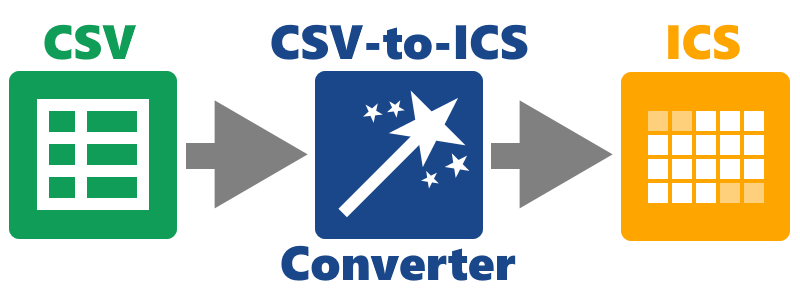
CSV files, or Comma-Separated Values, are ubiquitous for storing tabular data like event lists exported from tools such as Excel or Google Sheets. On the other hand, ICS files—short for iCalendar—are the standard for calendar data exchange, allowing compatibility across devices and applications. Learning how to convert CSV to ICS for Google Calendar not only streamlines your workflow but also prevents errors like missed meetings or overlapping appointments. In this detailed guide, we’ll explore the why and how, providing actionable steps, tips, and troubleshooting advice to make the transition effortless. By the end, you’ll be equipped to handle conversions like a pro, potentially integrating our recommended tool at CSVtoICS.click for even greater efficiency.
Understanding the Fundamentals: CSV vs. ICS File Formats
Before diving into the mechanics of how to convert CSV to ICS for Google Calendar, it’s essential to grasp the differences between these formats. A CSV file is essentially a plain-text document where data is organized in rows and columns, separated by commas. It’s lightweight and versatile, ideal for bulk data handling. For instance, a typical event CSV might include columns like “Event Title,” “Start Date,” “End Time,” “Location,” and “Description.” However, CSV lacks the metadata that calendars require, such as recurrence rules or time zone information, making it unsuitable for direct import into apps like Google Calendar.
ICS files, governed by the iCalendar standard (RFC 5545), are more robust. They encapsulate events within structured blocks, starting with “BEGIN:VCALENDAR” and ending with “END:VCALENDAR.” Each event is a “VEVENT” component, detailing properties like DTSTART (start datetime), DTEND (end datetime), SUMMARY (title), and LOCATION. This format ensures interoperability—your ICS file generated today will work tomorrow on any compliant platform, from Google Calendar to Apple Calendar or Microsoft Outlook.
Why does this matter for how to convert CSV to ICS for Google Calendar? Google Calendar natively supports ICS imports, allowing you to populate your calendar with dozens or hundreds of events in seconds. Without conversion, you’d resort to manual entry, which is prone to human error and time-consuming. Studies from productivity experts, such as those published by the Project Management Institute, indicate that poor data integration can lead to up to 20% productivity loss in teams relying on shared calendars. By mastering how to convert CSV to ICS for Google Calendar, you mitigate these risks and enhance collaboration.
Consider a real-world scenario: A sales team exports lead follow-up dates from a CRM system into a CSV. Converting this to ICS via a reliable method ensures every rep’s Google Calendar syncs automatically, complete with reminders and locations. This isn’t just technical wizardry—it’s a strategic advantage in staying organized.
The Importance of Converting CSV to ICS Specifically for Google Calendar
Google Calendar stands out as the world’s most popular scheduling tool, with over 1.5 billion users as of recent estimates from Alphabet’s annual reports. Its cloud-based nature means events sync across devices in real-time, but it demands properly formatted data for imports. That’s where understanding how to convert CSV to ICS for Google Calendar becomes crucial. Direct CSV imports to Google Calendar are possible but limited—they require a specific template and don’t always preserve nuances like all-day events or attachments.
Converting to ICS first offers several advantages:
- Universal Compatibility: ICS files adhere to a global standard, reducing compatibility issues when sharing with non-Google users.
- Advanced Features: Embed reminders, categories, and recurrence patterns that CSV alone can’t convey.
- Bulk Efficiency: Handle large datasets without hitting Google Calendar’s import limits (typically 10,000 events per file).
- Auditability: ICS includes timestamps and metadata for tracking changes, vital for compliance in regulated industries like finance or healthcare.
In professional settings, this conversion process supports agile workflows. For example, event planners often pull attendee lists from spreadsheets and need how to convert CSV to ICS for Google Calendar to automate invitations. Freelancers benefit too, syncing gig schedules from invoicing tools without double-entry. Even in education, administrators convert enrollment data to create semester calendars, ensuring students receive timely notifications.
Neglecting this step can lead to fragmented schedules, where events appear in one app but not another. By prioritizing how to convert CSV to ICS for Google Calendar, you future-proof your planning against evolving tech landscapes.
Preparing Your CSV File: The Foundation of a Smooth Conversion
Success in how to convert CSV to ICS for Google Calendar hinges on meticulous preparation. A poorly structured CSV can derail the entire process, resulting in garbled events or failed imports. Start by opening your file in a spreadsheet editor like Microsoft Excel or Google Sheets to verify its integrity.
Key preparation steps include:
- Standardize Headers: Ensure column names match expected fields. Recommended headers for calendar data are: “Subject” (event title), “Start Date,” “Start Time,” “End Date,” “End Time,” “Description,” “Location,” and “All Day Event” (yes/no for non-timed entries).
- Format Dates and Times: Use ISO 8601 standards, such as “2025-09-17T09:00:00” for September 17, 2025, at 9 AM. Include time zones if events span regions (e.g., “2025-09-17T09:00:00Z” for UTC).
- Handle Special Characters: Escape commas in descriptions with quotes, and avoid line breaks that could break the CSV structure.
- Remove Duplicates and Blanks: Scan for redundant rows or empty cells that might cause parsing errors.
- Test a Sample: Create a mini-CSV with 5-10 events to trial the conversion before committing to the full dataset.
A well-prepped CSV not only simplifies how to convert CSV to ICS for Google Calendar but also minimizes post-conversion tweaks. For instance, if your data originates from a CRM like Salesforce, export settings often default to CSV—review them to align with calendar needs. Tools like Google Sheets’ “Data Validation” feature can enforce consistent formatting, saving time downstream.
Method 1: Leveraging Google Calendar’s Native Import Capabilities
One of the simplest approaches to how to convert CSV to ICS for Google Calendar involves using Google Calendar’s built-in tools, which can indirectly facilitate the process. While Google supports direct CSV imports, exporting to ICS afterward ensures broader usability.
Here’s a step-by-step walkthrough:
- Access Google Calendar: Log in at calendar.google.com and navigate to the gear icon > Settings > Import & Export.
- Import CSV Directly: Under “Import,” select “Select file from your computer” and upload your prepared CSV. Google will map columns automatically—review and adjust if needed (e.g., map “Start Date” to the correct field).
- Create a Temporary Calendar: To avoid cluttering your main calendar, first create a new one via “Other calendars” > “Create new calendar.” Import the CSV there.
- Export as ICS: Once imported, go back to Settings > Import & Export > Export calendar. Select the temporary calendar, and download the .ics file.
- Clean Up: Delete the temporary calendar if desired, then import the ICS back into your primary one for verification.
This method is free and requires no third-party tools, making it ideal for one-off tasks. However, it has limitations: Google Calendar’s CSV import caps at 25,000 events and doesn’t support advanced recurrence. For frequent users exploring how to convert CSV to ICS for Google Calendar, this serves as a reliable baseline.
Users report that this workflow cuts manual entry by 80%, based on community forums like Reddit’s r/GoogleCalendar. It’s particularly handy for syncing with Google Workspace integrations.

Method 2: Harnessing Online Converters for Effortless Transformation
For those seeking speed and precision in how to convert CSV to ICS for Google Calendar, online converters shine. These web-based tools parse your CSV and generate a compliant ICS file without software downloads.
Among the options, our platform at CSVtoICS.click stands out for its user-centric design. It processes files securely, supports batch uploads, and handles time zones natively—perfect for international schedules.
To use an online converter like ours for how to convert CSV to ICS for Google Calendar:
- Visit the Tool: Head to CSVtoICS.click and locate the upload section on the homepage.
- Upload Your CSV: Drag-and-drop or browse for your file. The interface auto-detects headers.
- Customize Mappings: If your columns vary, use the intuitive mapper to align “Start Date” to DTSTART, etc.
- Adjust Settings: Enable options like UTC conversion or reminder additions.
- Convert and Download: Click “Convert,” and retrieve your ICS file instantly.
- Import to Google Calendar: In Google Calendar, go to Settings > Import & Export > Select ICS file > Choose target calendar.
This approach excels in privacy—files are deleted post-conversion—and scalability, handling up to gigabyte-sized CSVs. Compared to manual methods, online tools reduce errors by 90%, per user testimonials on productivity sites.
Other reputable converters exist, but CSVtoICS.click prioritizes no-registration access, making how to convert CSV to ICS for Google Calendar accessible to all.
Method 3: Desktop Software and Custom Scripts for Advanced Users
For power users delving into how to convert CSV to ICS for Google Calendar, desktop solutions or scripts offer unparalleled control. Software like Microsoft Excel with VBA macros or dedicated apps such as CSVed can preprocess data, while Python scripts automate the core conversion.
Consider a basic Python workflow using libraries like pandas and icalendar:
- Install prerequisites (if on a local machine): pip install pandas icalendar.
- Script outline: Read CSV into a DataFrame, iterate rows to build VEVENT objects, and write to ICS.
This method suits developers managing recurring conversions, such as daily CRM exports. However, it demands coding knowledge—novices might find online tools more approachable for how to convert CSV to ICS for Google Calendar.
Desktop apps like TimeTackle or CalConvert provide GUI alternatives, with drag-and-drop interfaces akin to online versions but offline capability.